
CZUR Shine800A3 Pro Software and Driver: Download, Install and First Scan
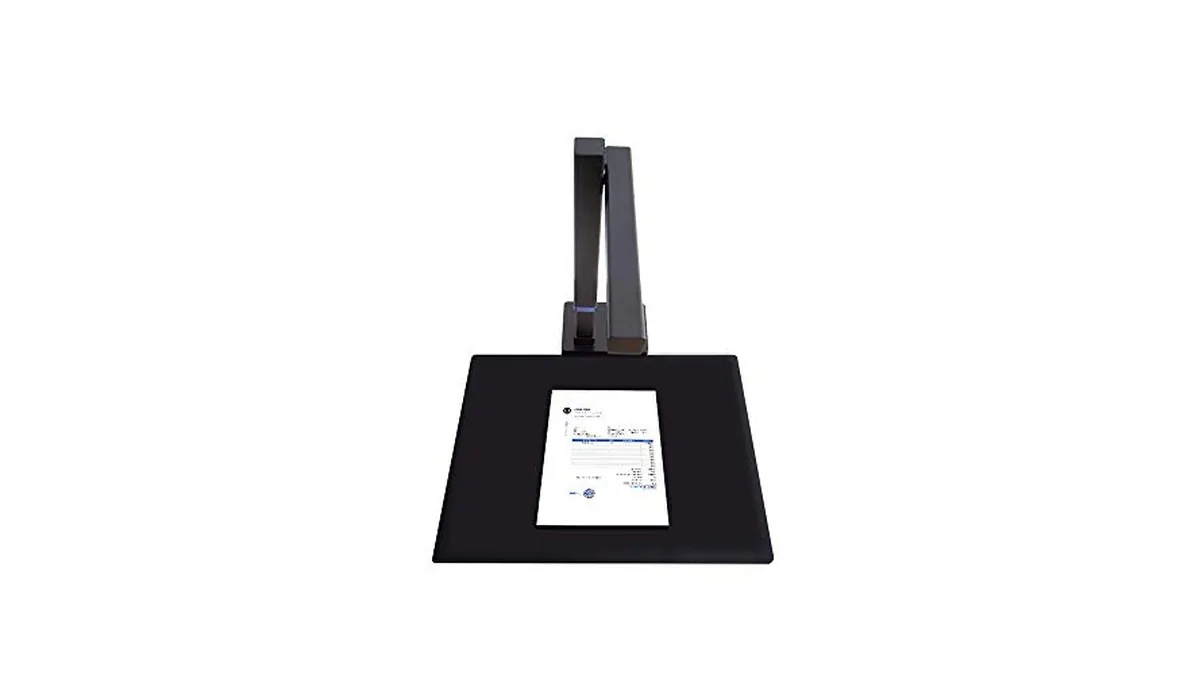
The CZUR Shine800A3 Pro connects over USB 2.0, but on its own it's a camera on a stand. CZUR's software does the cropping, straightening and text recognition. CZUR doesn't give this model a page of its own. It shares the Shine Pro support page with the Shine 500 and Shine 800, and the downloads there apply to all three. Here's the install, start to finish.
Step 1: Pick the build for your computer
When we checked CZUR's Shine Pro support page on October 18, 2026, it offered four downloads:
- CZUR Shine 2.2.260818 for Windows 7, 8, 10 and 11, dated October 16, 2026
- CZUR Shine 2.2.260112 for Windows XP, dated July 25, 2026
- CZUR Scanner 5.5.5 for Mac with Apple Silicon, dated October 16, 2026
- CZUR Scanner 5.5.5 for Mac with Intel, dated October 16, 2026
The program is called CZUR Shine on Windows and CZUR Scanner on Mac. CZUR updates these regularly, so take the newest version on the page, not the numbers above.
Step 2: Install it, and skip the driver hunt
There's no separate driver download on the Shine Pro page, only the software. Install it the usual way for your system, then plug the scanner into a USB port on the computer. CZUR's download guide also offers a "Visual Presenter" mode alongside "Scanner" when you open the program. Choose Scanner for documents.
Step 3: Enter the serial number on Windows
CZUR's download guide says Windows users still need to type in the serial number from the bottom of the scanner, under Setting. Mac users no longer have to. One catch from CZUR: the serial number never contains the number one. If you see what looks like a 1, it's a capital letter I.
Step 4: Choose your language
CZUR's guide lists the interface languages as English, Simplified and Traditional Chinese, French, Italian, Spanish, German, Portuguese, Russian, Japanese, Vietnamese and Korean. That's separate from the language of the pages you scan. CZUR lists text recognition for 180+ languages on the Shine Pro series.
Step 5: Make the first scan
Raise the camera to suit your largest page. CZUR gives the Shine800A3 Pro an adjustable height and autofocus so it can reach A3. Lay the soft pad from the box underneath as a background, put a page down and capture it. The software crops and straightens the page for you.
Three ways to trigger a scan
CZUR lists three scanning methods for the Shine Pro series:
- The button on the device.
- The capture button in the software.
- The foot pedal that comes in the box, which leaves both hands free to turn pages.
CZUR also offers auto-scan, which captures the next page when you swap the paper.
What the software can do with a page
CZUR's feature list for the Shine Pro series includes smart paging, auto-cropping and tilt correction, trimming, combining the front and back of a page into one image, a stamp mode, several color modes, manual area selection and video recording. Exports are JPG, PDF, searchable PDF, Word, Excel and TIFF.
Computer requirements
- Windows: x86 processor at 2 GHz or more, 4 GB of RAM minimum (8 GB recommended), 2 GB of disk to install.
- Mac: macOS 13 or later for the Apple Silicon build and macOS 12 or later for Intel, a Mac that supports Metal, 2 GB of RAM minimum (8 GB recommended).
- Both: a 1366 × 768 screen or larger. CZUR recommends 20 GB of free space for scans.
If the software opens but keeps showing "Detecting devices", CZUR's guide suggests restarting the PC with antivirus paused, reinstalling, trying another USB port, and turning on "Let apps use my camera" in Windows camera privacy settings.
Need to scan bound books rather than flat pages? Compare models on CZUR Document Scanners and Book Scanners.