
CZUR Lens 800 Pro Software and Driver: What to Download, and What It Does
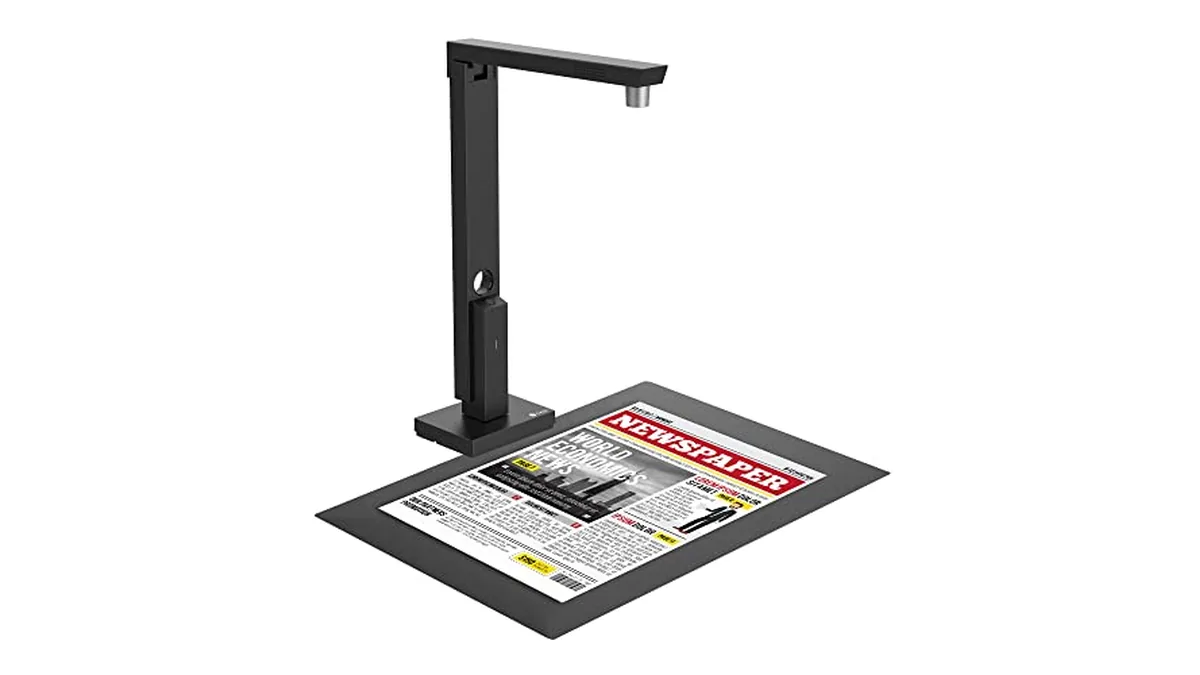
The CZUR Lens800 Pro connects with a single USB cable, which carries both power and data. What turns its camera into a scanner is the software. CZUR's Lens Pro support page lists one required program and one optional one, in different builds for Windows, older Windows and Mac. Here's how to pick the right download, and what you get once it's installed.
Which download is yours
CZUR marks the scanning program "Must Download". The webcam program is optional.
| Your computer | Scanning software (required) | Webcam software (optional) |
|---|---|---|
| Windows 7, 8, 10 or 11 | CZUR Lens for Windows 7/8/10/11 | CZUR Camera for Windows |
| Windows XP | CZUR Lens for Windows XP | CZUR Camera for Windows |
| Mac with Apple Silicon (macOS 13 or later) | CZUR Scanner for Mac (Apple Silicon) | CZUR Camera for Mac |
| Mac with Intel (macOS 12 or later) | CZUR Scanner for Mac (Intel) | CZUR Camera for Mac |
Note the name change on Mac. The Windows program is called CZUR Lens, but the Mac builds for this scanner are named CZUR Scanner. They're both on the same Lens Pro support page, so you're in the right place.
When we checked CZUR's support page on October 18, 2026, the Windows build was 1.0.260112 (dated July 15, 2026) and both Mac builds were 5.5.5 (dated October 16, 2026). CZUR updates these, so take whatever is newest on the page.
Is there a separate driver?
CZUR's support page lists no separate driver for the Lens Pro, only the two programs above. The scanner works through the CZUR Lens or CZUR Scanner software. If the program can't see the scanner once it's installed, that's a connection or permissions problem, not a missing driver.
What the software does with a scan
CZUR describes the processing as automatic: the program corrects edges, optimizes the background color and handles post-processing, then outputs with one click. Here's what that means by job.
Loose pages and forms
Capture takes about a second a page, with no pre-scan wait. Turn on automatic page-turn detection and the software takes the next shot as soon as the page changes, so a stack of sheets goes quickly. Smart tilt adjustment and auto-cropping straighten each page.
Two-sided IDs and documents
Combining front and back sides puts both faces of a card or form into one file.
Business cards
Lay several down at once. The software cuts them apart and splits them into separate images.
Turning paper into text
OCR converts scans into Word, Excel, PDF or searchable PDF, and CZUR says it recognizes 180+ languages. Its product page for the Lens Pro says 185. The Lens800 Pro's product details note that Thai, Hebrew and Arabic aren't supported yet.
Extras
Watermarking, background purifying, barcode and QR code recognition, and automatic completion of damaged pages.
Exports come out as JPG, PDF, searchable PDF, Word, Excel or TIFF. CZUR notes that TIFF files are converted from the scanned JPGs.
Two things the software doesn't do on this model: book scanning with surface flattening, and combining multiple pages into one image. Both are marked unsupported in CZUR's Lens Pro spec table. If you scan bound books, the CZUR Aura Pro is built for that.
CZUR Camera, the optional one
Rotate the Lens800 Pro's base 180° and the camera faces you, as a webcam with sound at 1920 × 1080 or 1600 × 1200. CZUR lists CZUR Camera as optional. It's the program for recording video, merging camera views, adding watermarks and applying filters. CZUR's page for the Lens Pro also mentions screen recording, with recorded meetings and lectures exported directly.
Check your computer first
CZUR's support page gives these minimums for the Lens software:
| Windows 7 to 11 and XP | Mac (Apple Silicon or Intel) | |
|---|---|---|
| Processor | x86, 2 GHz or higher | 2 GHz or higher, Metal-capable Mac |
| Memory | 4 GB minimum, 8 GB recommended | 2 GB minimum, 8 GB recommended |
| Disk | 2 GB to install; 20 GB recommended for scans | 2 GB to install; 20 GB recommended |
| Screen | 1366 × 768 minimum | 1366 × 768 minimum |
The Windows builds are for x86 processors.
If the software is installed and the scanner still doesn't appear, start with the basics: the cable that came in the box, plugged straight into the computer. On a Mac, also check that the app is allowed to use the camera.
For pages larger than A4, or books, compare the rest of the range on CZUR Document Scanners or read how to choose a CZUR scanner.