
CZUR Scanner Not Detected: What to Check, in Order
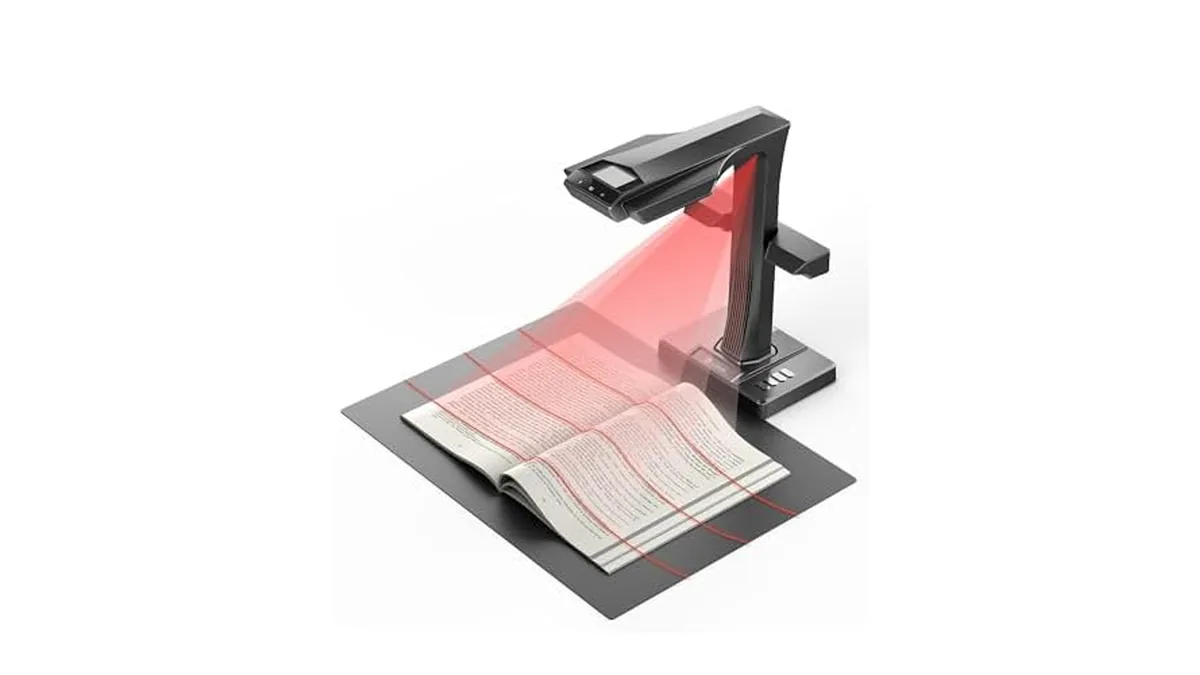
You plug in the scanner, open CZUR's software, and it says no device is connected. Often the cause is simple: a cable, a port, a missing software install or a system permission. Work through the checks below in order. They start with the thirty-second fixes and end with the ones that take longer.
Quick checks (two minutes)
1. Is the scanner powered?
The ET MAX comes with its own power adapter, so check that cable at both ends and that the scanner's light comes on. If the scanner shows no sign of power, the computer won't see it either. The Lens800 Pro is different: CZUR says a single USB connection carries both power and data, so for that model the USB cable is the power check too.
2. Use the cable that came in the box
CZUR's scanners connect over USB, and CZUR gives USB 2.0 High-Speed for its ET book scanners. Some spare cables only carry power, not data. If you're using a cable from a drawer, swap it for the original.
3. Plug straight into the computer
USB hubs, keyboard ports and monitor ports often can't supply enough power or bandwidth for a camera-based scanner. Connect directly to a port on the computer itself.
4. Try another port
On a desktop, use a rear port on the motherboard rather than a front-panel port. On a laptop, try the port on the other side.
5. Restart in the right order
Close CZUR's software, unplug the scanner, restart the computer, plug the scanner back in, wait a few seconds, then open the software.
Software checks
6. Install CZUR's software for your model
Each scanner works with CZUR's own desktop app, downloaded from CZUR's support site. Make sure you've installed the version for your exact model.
7. Update it
An older version of the app may not recognize a newer scanner. Download the current release and reinstall.
8. Close other camera apps
CZUR scanners capture images with a camera. If Zoom, Teams, OBS or a browser tab is already using a camera, close it before opening the scanner software.
System checks
9. Check your operating system is supported
For the Aura Pro, Shine800A3 Pro, Lens800 Pro and ET MAX, CZUR gives the same baseline: Windows XP/7 or later, macOS 13 or later on Apple Silicon, and macOS 12 or later on Intel Macs. The ET MAX also supports Ubuntu 20.04 to 24.04. An older system may not work with the current software.
10. On a Mac, check permissions
macOS asks before an app can use a camera. Open System Settings, go to Privacy & Security, then Camera, and make sure CZUR's app is allowed. Restart the app afterward.
11. On Windows, check Device Manager
Plug in the scanner and open Device Manager. If a device appears with a warning symbol, or appears and disappears, the problem is usually the cable, port or power. If nothing appears at all, try another computer to see whether the issue follows the scanner.
12. Check camera privacy settings on Windows
In Settings, under Privacy & security, then Camera, make sure camera access is on for desktop apps.
Still not working?
If the scanner isn't detected on a second computer with the original cable plugged straight in, contact CZUR's support or the shop you bought from. Note your model, the computer and system version, and what you've already tried. That saves a round of questions.