
CZUR Halo X Pro Setup: Driver, Software and Getting Both Cameras On Screen
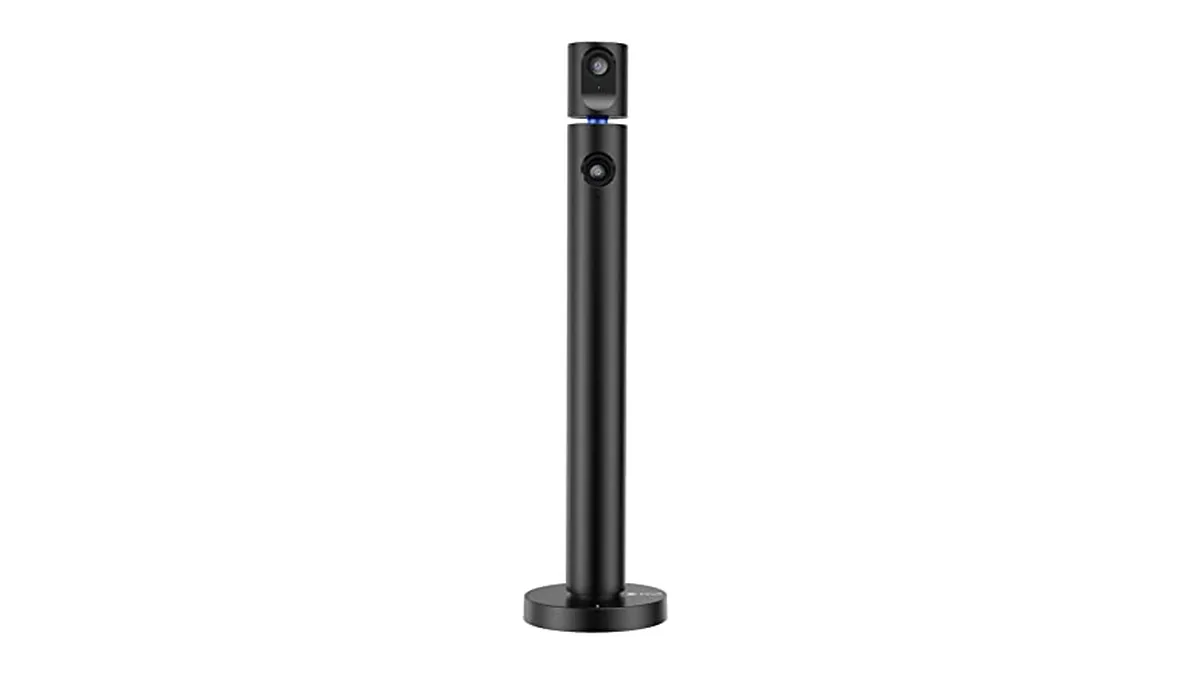
Most people searching for a Halo driver don't need one. The CZUR Halo X Pro Dual Webcam is plug and play over USB, and CZUR says plainly that no driver installation is needed. The software question only comes up when you want both of its cameras showing at once. Pick the path below that matches what you're doing.
Before you start: the two cameras
The Halo X Pro has two 1080p (1920 × 1080) cameras on one base, each with a 90° field of view.
- The main camera runs at 60 fps.
- The second camera runs at 30 fps.
- The top camera turns 270° horizontally by hand, and the base turns 180°, so the two can face different ways: one on you, one on your desk or a whiteboard.
Path 1: One camera in your usual app
This is all most video calls need.
- Plug the USB cable into your computer. Nothing to install.
- Open Zoom, OBS, FaceTime or whichever app you use. CZUR lists most mainstream video apps as compatible.
- In the app's video or camera settings, choose the Halo camera you want.
CZUR's own FAQ answers the common question directly: its software is not mandatory, and most programs work with the Halo.
Path 2: Both cameras at once with CZUR Camera
Here's the catch with two cameras: CZUR notes that some software can't use both at the same time. For the dual view, it points you to its own app, CZUR Camera.
- Go to the Halo X Pro page in CZUR's support section and download CZUR Camera for your system. When we checked on October 18, 2026, the current builds were CZUR Camera V2.1.260127 for Windows (January 27, 2026) and CZUR Camera 2.0 for Mac.
- Install it, then plug in the webcam.
- Open CZUR Camera to show or record from both cameras together.
CZUR also posts an English user manual and a CZUR Camera software manual on the same support page, so that's the place to look if a menu has you stuck.
Path 3: Streaming setups
CZUR lists OBS, Twitch, YouTube and Facebook among the compatible platforms. In a streaming app that accepts several video sources, add each Halo camera as its own source, then arrange the face cam and desk cam the way you want. If your app only accepts one source at a time, record the dual view in CZUR Camera instead.
If something looks wrong
| What you see | Likely reason | What to do |
|---|---|---|
| Picture isn't sharp | Fingerprints or grease on the lens | Clean it with an optical lens wipe, as CZUR advises |
| Doesn't look like 1080p in Zoom | The app is compressing the video | In Zoom, go to Settings > Video and turn on "Enable HD" |
| Only one camera shows up in your app | That app can't run two cameras at once | Use CZUR Camera for the dual view |
| Very close objects look soft | Both lenses are fixed focus | Move the object back a little |
| Windows Hello won't use it | Not supported | CZUR confirms the Halo doesn't work with Windows Hello |
Will it work with my computer?
- Windows: yes, 32-bit or 64-bit, per CZUR. The CZUR Camera app runs on Windows 7, 8, 10 and 11 on x86.
- Mac: yes. The CZUR Camera app needs macOS 10.13 or later on a Metal-capable Mac.
- For the app, CZUR's minimums are 2 GHz or faster, 4 GB of RAM on Windows (2 GB on Mac, 8 GB recommended on both), 2 GB of disk space and a 1366 × 768 screen.
- The camera itself needs only a USB port. There's a built-in microphone, so a basic setup doesn't need a separate mic.
Comparing it with a meeting-room system? See CZUR Webcams and Meeting Systems, which includes the CZUR StarryHub. If you also scan documents on camera, the CZUR Lens800 Pro doubles as a webcam.