
How to Scan Receipts and Invoices
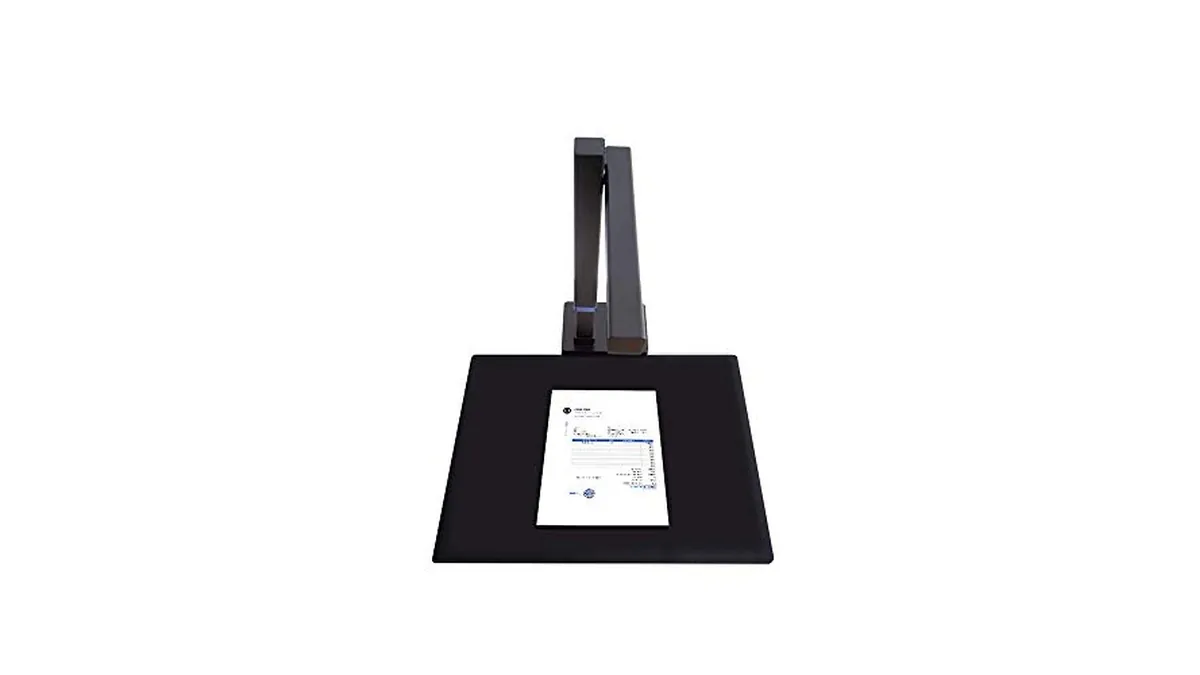
Receipts are small, curly and often printed on shiny thermal paper. Invoices are full pages with tables you may want to edit. An overhead scanner handles both well, because you lay paper on the mat and capture, with no feeding. The Shine800A3 Pro and Lens800 Pro are the two CZUR flat-page models suited to this. Both use an 8MP sensor, capture a page in about a second, and can export JPG, PDF, searchable PDF, Word, or Excel after text recognition.
Job 1: A pile of small receipts
- Flatten them first. Long curly receipts can go under a weight for a few minutes. The Shine800A3 Pro's autofocus copes better with paper that isn't perfectly flat; the Lens800 Pro has fixed focus, so flatten thermal slips before you start.
- Lay several on the mat at once, with gaps between them so the software can tell them apart. Keep edges inside the mat marks and leave a finger-width of empty space between slips.
- Use multi-item capture or manual area selection on the Shine800A3 Pro, so each receipt becomes its own image. The Lens800 Pro's business-card splitting does a similar job for small items.
- Turn the light down a step if thermal paper shows glare. The Shine800A3 Pro's top LED is dimmable. If a slip still reflects, rotate it a few degrees and recapture that one only.
- Check each crop before you clear the mat. Confirm each crop shows the vendor name and total; recapture a blurry slip while it is still on the desk.
Job 2: Full-page invoices
- Use auto-scan. Both models can take the next capture when the page changes, so you just swap sheets. Each capture takes about a second.
- Two-sided invoice? Use front-and-back combining to keep both sides in one file. Keep the same corner against the mat edge so pages stay aligned.
- Run text recognition (180+ languages) and export to searchable PDF, so you can find an invoice later by vendor name or number.
- For line items you need in a spreadsheet, export to Excel. Check totals against the paper copy, since recognition can misread faint print or thin table rules.
- Prefer a clean desk for ledgers. If a statement is wider than letter size, use the Shine800A3 Pro's A3 mat coverage rather than stitching two A4 shots.
Job 3: Filing it all
A consistent file name saves hunting later:
| Document | Suggested name |
|---|---|
| Receipt | 2026-11-03_vendor_amount-category |
| Invoice | 2026-11_vendor_invoice-number |
| Monthly bundle | 2026-11_receipts.pdf |
Keep one folder per year and one per month inside it. At tax time, a searchable PDF per month is easy to hand over. After each session, drop new files into the current month folder before you shut the software down, so piles do not rebuild on the desktop. If you batch a week's receipts into one PDF, keep the date range in the file name so you can tell January from February at a glance.
Which model?
If your pile includes A3 statements or you want the foot pedal and autofocus, use the Shine800A3 Pro. If receipts and letter-size pages are all you scan, the smaller Lens800 Pro covers it and doubles as a webcam. Both are in Document Scanners. If the computer won't see the scanner, try this checklist.