
CZUR Scans Blurry or Curved? Focus and Flattening Fixes
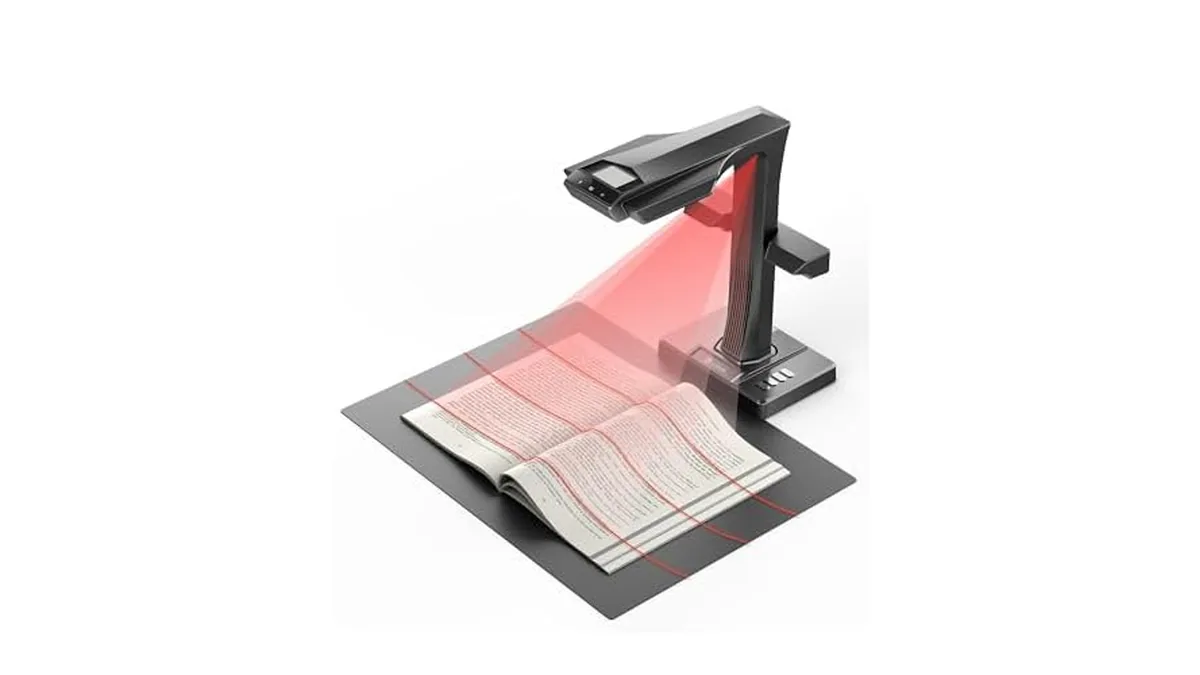
Blurry text and bowed lines are the two complaints overhead book scanners hear most. On the CZUR ET MAX, those problems usually come from a book that is thicker than the published limit, a page that still curves under the camera, glare from a window, or a page that sits outside the plane the 38MP sensor can keep sharp. The fixes below use features CZUR actually lists for this model.
What the ET MAX can keep in focus
The ET MAX is a camera-based scanner, not a glass flatbed. CZUR lists a 38MP CMOS sensor at 7168 × 5376 pixels and a default resolution of about 410 dpi. Flat single pages go up to A3 (16.5 × 11.7 in / 420 × 297 mm). Bound books are supported up to A4 per page, with a reference thickness of 50 mm (2.0 in) at A4 and 35 mm (1.4 in) at A3. Stated capture speed is about 1.5 seconds per flat page and about 1.5 seconds per two-page book spread.
Because a camera spreads its pixels across the whole scan area, a full A3 sheet has fewer pixels per inch than a smaller page. That is why large pages can look softer than the default 410 dpi figure suggests. CZUR scanner dpi explained walks through that trade-off. The basic capture sequence is in how to use the CZUR ET MAX.
If a hardcover will not open far enough to stay within 50 mm (2.0 in) at A4, flattening will not make the gutter as sharp as the outer margin. Do not force the spine. Scan one side at a time if the binding is tight.
Match the problem to a cause
Look at the captured image, not just the printed page, and decide which pattern you have:
- Soft everywhere, including the center of a flat sheet: camera distance, room vibration, or a book that moved during the 1.5-second capture.
- Sharp in the middle, soft near the gutter or the outer edge: the page is still curved, or that zone sits outside the focus plane.
- Text that follows a smile or frown across the line: curve flattening did not get a clean read of the page, or the book exceeded the thickness reference.
- Bright patches or washed-out photos: glare from a window or from glossy paper.
- Shadows along one side: uneven room light fighting the scanner’s own lamps.
- Fingertips in the margin: you are holding the book, which the software can erase when those fingers stay at the edges.
Curve flattening: use the lasers, do not smash the book
Three laser lines trace the curve of an open book. The software uses that line to flatten the page and straighten the text. It can also split a spread into two pages. This is the point of an overhead book scanner: you do not press the book against glass the way you would on a flatbed.
Open the book evenly on the supplied black mat. Let both sides rest as flat as the binding allows, within the 50 mm (2.0 in) A4 or 35 mm (1.4 in) A3 reference. If one side stands much steeper than the other, the laser lines may not describe a curve the software can correct. Hold the margins with your fingers at the outer edges if needed; CZUR says the software can erase fingertips that appear there.
If lines still bow after flattening, check that the lasers are visible across the page. A bookmark, a thick fold-out, or a hand sitting high above the paper can break the line. Recapture once the book is still. Run text recognition after the whole session rather than page by page, so the book is not shifting in your hands between every spread.
Glare, shadows, and the side lights
CZUR includes a top LED plus side lights, and it calls out those side lights for glossy paper. Place the scanner on a flat, stable desk, put the black mat underneath, and keep strong window light off the page. Side sunlight is a common reason photos look milky and why black text blooms.
If a glossy magazine still flares, try the side lights on and the room’s overhead lights down. Do not stack extra desk lamps next to the arm; extra side light is what CZUR asks you to reduce. Confirm the black mat covers the area around the page so the camera is not exposing for a bright desk.
Hands-free capture so the page stays still
Motion during capture looks like blur. The ET MAX gives you a button on the device, a software trigger, a hand button, and a foot pedal, plus auto-scan on page turn. For a long book, use the foot pedal or auto-scan so both hands can hold the pages. Windows, macOS (13 or later on Apple Silicon, 12 or later on Intel), and Ubuntu 20.04 to 24.04 are the published systems. USB 2.0 carries the scan; HDMI output is a separate presenter job.
If only one side of a spread is soft, that side may be higher than the other. Adjust how you hold the book. Bound-book support stops at A4 per page, so an oversized atlas may need to be scanned in sections.
When another CZUR model is the simpler fix
If your books are mostly thin and you want a unit that folds away, the Aura Pro is the lighter book scanner, with a 14MP sensor. Comparisons live in CZUR ET MAX vs ET24 Pro and Aura Pro vs ET MAX. The rest of the lineup is in the CZUR review and under book scanners.
Stay inside the published thickness, give the lasers a clean view of the curve, kill window glare with the mat and the side lights, and keep the book still while the 38MP camera shoots.