
How to Use the CZUR ET MAX to Scan a Book
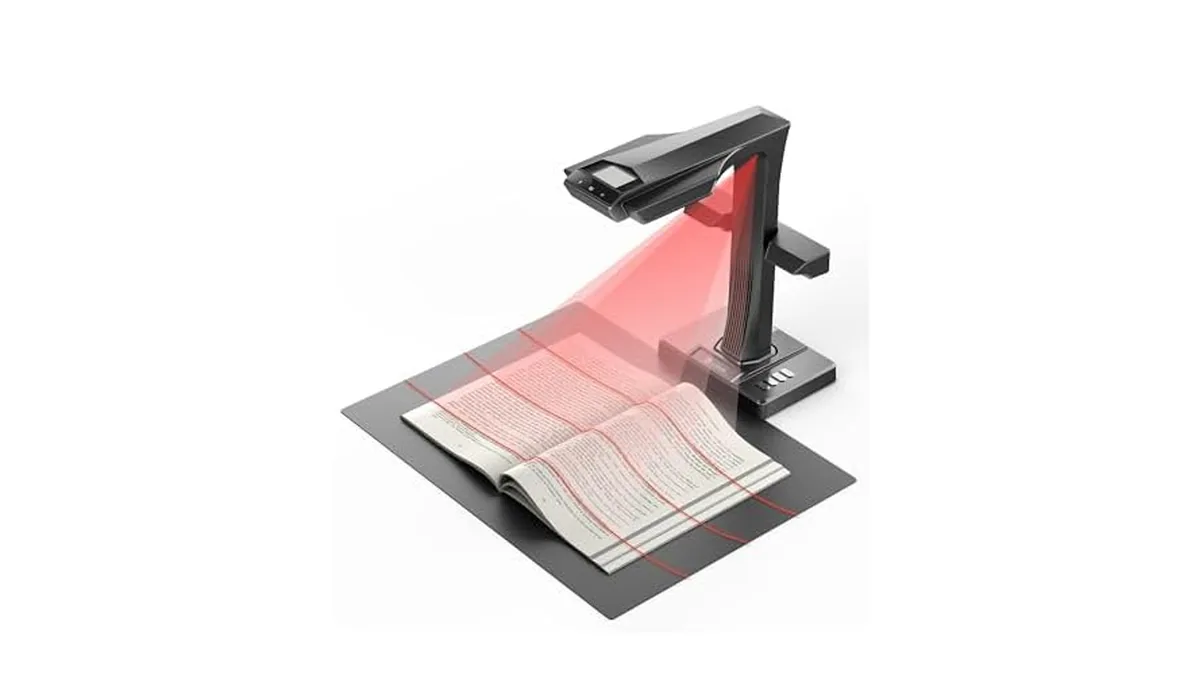
Most poor scans from an overhead scanner come from the setup, before the first page is turned. The CZUR ET MAX photographs the page from above with a 38MP camera, then uses three laser lines to work out how the paper curves and flatten it in software. That only works when the scanner can see a clean black background, the laser lines land on the page and your fingers are recognizable as fingers. Get those right and the rest is a rhythm of turning pages and tapping a pedal.
Set up the desk
- Put the scanner on a table big enough for the open book with room to spare on both sides.
- Plug the foot pedal or the hand button into the USB port at the back of the base. For a whole book, CZUR recommends the foot pedal, so both hands stay on the pages.
- Spread the black document pad under the scanner head, with the cutout in the pad lined up with the base.
- Look at the image on the scanner's screen. The black pad has to fill the whole frame, with no desk surface or pad edge showing. CZUR calls this step extremely important, because the software uses the black background to find the page.
- Keep the scanner away from windows and very bright lamps. Strong ambient light makes the laser lines fainter, and the software needs them.
- Install the CZUR Scanner software on your computer, connect the USB cable from the base and switch everything on. CZUR's support page has versions for Windows, macOS on Apple Silicon and Intel, and Linux. If the computer doesn't see the scanner, work through our CZUR scanner not detected checklist.
One book, start to finish
Open the book flat on the pad, spine centered under the camera. Check the screen again: all three laser lines should run across the curved pages, not past the edge of the book or onto the pad. If they miss the paper, slide the book until they sit on it.
Put on the finger cots from the box, one for each hand. You'll be holding the pages down near the edges, and the cots are what let the software find your fingertips and erase them from the image. CZUR says finger removal doesn't work properly without them.
Choose the page mode in the software before you start (the table below explains the two). Then turn to the first page, press the pages down at the outer margins and tap the pedal. The ET MAX captures a page in about 1.5 seconds once you're practiced. Turn the page, hold, tap, and repeat. Each capture appears in the software, where you can check the flattening and crop before you carry on.
When the book is done, export it. The ET MAX saves as JPG, PDF, searchable PDF, Word, Excel or TIFF. A searchable PDF is the usual choice for a book you want to search later. Our CZUR OCR languages guide lists which languages the text recognition reads.
Bound books can be up to A4 per page and up to 50 mm thick at that size. Flat single sheets can go up to A3.
Which page mode to pick
| Mode | Use it for | What the software does |
|---|---|---|
| Flat Single Page | Loose sheets, letters, flat documents | Treats the capture as one flat page |
| Facing Pages | An open book or bound report | Flattens the curved pages and removes fingers (with finger cots on), and can split the spread into two pages |
Lighting by material
| What you're scanning | Lights |
|---|---|
| Ordinary book or paper | Main top light on. Turn on the fill light if the crossbar casts a shadow on the page. |
| Magazines, coated or glossy paper, glossy books | Top light off, side lights on |
| ID cards and other shiny documents | Top light off, side lights on |
CZUR notes that the ET MAX isn't recommended for very glossy or reflective material. The side lights are what you have for that kind of page.
Using it as a document camera
The ET MAX also works without a computer. Connect it to power and run an HDMI cable to a projector, TV or whiteboard. Leave the USB cable to the computer unplugged. When you switch the scanner on, it goes straight into presenter mode. If the screen shows no signal, set the display's input to HDMI. The zoom buttons on the base enlarge the image in six steps, up to 12 times.
Will your computer keep up?
| Windows | Mac | |
|---|---|---|
| System | Windows 7, 8, 10 or 11 (a separate build for XP) | macOS 13 or later on Apple Silicon, macOS 12 or later on Intel |
| Processor | Intel Core i7 8th gen or AMD Ryzen 7th gen or newer, 3.4 GHz or higher | 2 GHz or higher, with a Metal-capable GPU |
| Memory | 8 GB, 16 GB recommended | 8 GB recommended |
| Disk | At least 20 GB free on drive C | 20 GB recommended |
| Screen | 1366 × 768 minimum | 1366 × 768 minimum |
A 38MP book scan makes big files, so the disk figure is worth taking seriously on a long project.
If you're still choosing, our ET MAX vs ET24 Pro comparison covers the step down in resolution, and the Aura Pro how-to shows the folding alternative. The whole range is in Book Scanners.